
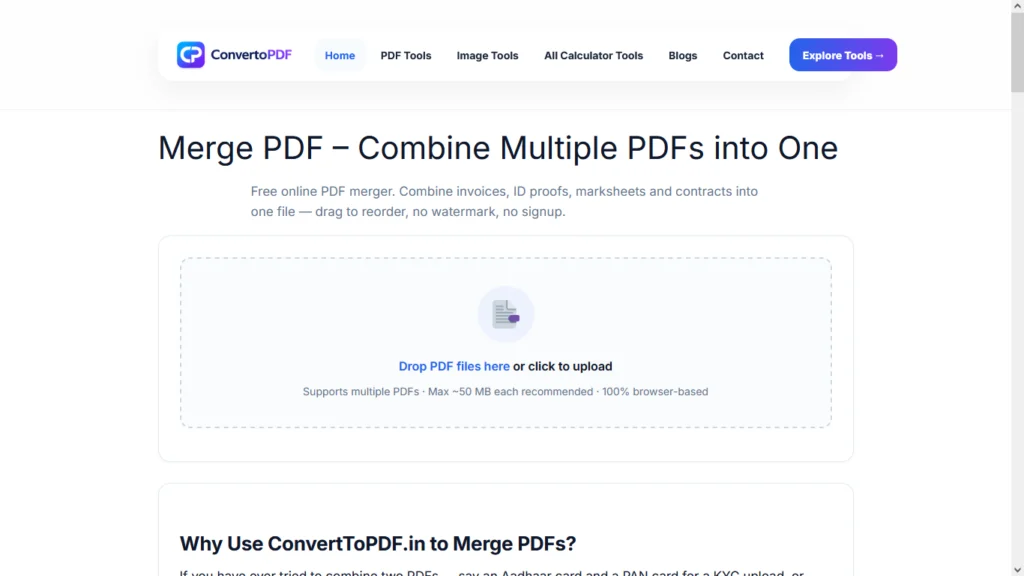
Merge PDF Online Free
Managing multiple PDF files can quickly become frustrating, especially when you need to submit assignments, business reports, legal documents, invoices, resumes, or project files in a single document. Instead of sending several PDFs separately, you can merge PDF files into one organized document within seconds.
With ConvertoPDF Merge PDF Tool, you can combine multiple PDF files online without installing any software or creating an account. The tool works directly in your browser, keeps the original document quality intact, and is designed to be simple enough for anyone to use.
Whether you’re a student submitting coursework, an office employee preparing reports, a freelancer sending proposals, or someone organizing personal documents, merging PDFs saves time and makes document management much easier.
Table of Contents
- What is a Merge PDF Tool?
- Why Should You Merge PDF Files?
- Benefits of Combining PDFs
- Who Can Use a Merge PDF Tool?
- How Does the Merge PDF Tool Work?
- Features of ConvertoPDF Merge PDF Tool
- How to Merge PDF Online Step by Step
- Why Choose ConvertoPDF?
- Security & Privacy
- Common Use Cases
- Tips Before Merging PDFs
- Common Problems and Solutions
- Frequently Asked Questions
- Conclusion
What is a Merge PDF Tool?
A Merge PDF Tool is an online utility that allows you to combine two or more PDF files into a single document while preserving the original formatting, fonts, images, layouts, and page quality.
Instead of managing several individual PDFs, you can create one well-organized file that’s easier to:
- Share
- Archive
- Upload
- Present
- Store
For example, if you have separate files for a cover letter, resume, certificates, and portfolio, you can merge them into one PDF before sending them to an employer.
Likewise, businesses often combine invoices, contracts, quotations, receipts, and reports into one professional document.
Why Should You Merge PDF Files?
Keeping multiple PDF files separately often creates unnecessary confusion. Combining them into one file offers better organization and improves productivity.
Here are some common situations where merging PDFs becomes useful:
Students
Students frequently need to combine:
- Assignment pages
- Project reports
- Certificates
- Notes
- Research papers
- Practical files
Instead of uploading several files individually, they can submit one organized PDF.
Office Professionals
Professionals regularly merge:
- Reports
- Contracts
- Business proposals
- Financial documents
- Client presentations
- Monthly summaries
A single PDF looks cleaner and is easier for clients and colleagues to review.
Freelancers
Freelancers often combine:
- Proposal
- Portfolio
- Resume
- Pricing document
- Previous work samples
Sending everything in one PDF creates a more professional impression.
Government Documentation
Many online government portals require applicants to upload one PDF containing multiple supporting documents.
Examples include:
- Identity proof
- Address proof
- Certificates
- Forms
- Supporting documents
A Merge PDF tool simplifies this process.
Personal Use
You can also merge:
- Medical reports
- Insurance papers
- Travel documents
- Bills
- Receipts
- Warranty cards
Keeping everything together makes future access much easier.
Benefits of Combining PDF Files
Using a Merge PDF tool offers several practical advantages.
1. Better Organization
Instead of handling multiple PDFs, you only manage one document, making everything easier to locate and share.
2. Faster File Sharing
Sharing one PDF is quicker than sending several attachments via email or messaging apps.
3. Professional Appearance
Clients, teachers, recruiters, and organizations appreciate receiving one well-structured PDF rather than multiple scattered files.
4. Saves Time
Merging documents takes only a few seconds compared to manually organizing multiple files.
5. Preserves Original Quality
A reliable PDF merger maintains:
- Text formatting
- Images
- Tables
- Fonts
- Hyperlinks
- Overall layout
without reducing quality.
6. Works Across All Devices
Since the tool runs in your browser, you can merge PDFs using:
- Windows
- macOS
- Linux
- Android
- iPhone
- Tablet
No software installation is required.
7. Improves Productivity
Whether you’re working, studying, or managing documents, having everything in one file reduces confusion and saves valuable time.
Who Can Use the Merge PDF Tool?
Almost anyone who works with digital documents can benefit from merging PDFs.
Students
- Homework
- Assignments
- Research papers
- Notes
- Practical files
Teachers
- Study materials
- Examination papers
- Student reports
- Question banks
Businesses
- Contracts
- Agreements
- Financial reports
- Company documentation
HR Professionals
- Candidate resumes
- Offer letters
- Employee records
Lawyers
- Legal documents
- Court submissions
- Evidence files
- Agreements
Accountants
- Tax documents
- Bills
- Receipts
- Invoices
- Financial statements
Government Employees
- Official forms
- Verification documents
- Department reports
Everyday Users
Anyone who wants to organize multiple PDF documents into one easy-to-manage file.
How Does an Online PDF Merger Work?
An online Merge PDF tool follows a straightforward process:
- Upload one or more PDF files.
- Arrange the files in the desired order.
- Start the merging process.
- The tool combines all pages into a single PDF.
- Download the merged document instantly.
The entire process usually takes only a few seconds, depending on the number and size of your files.
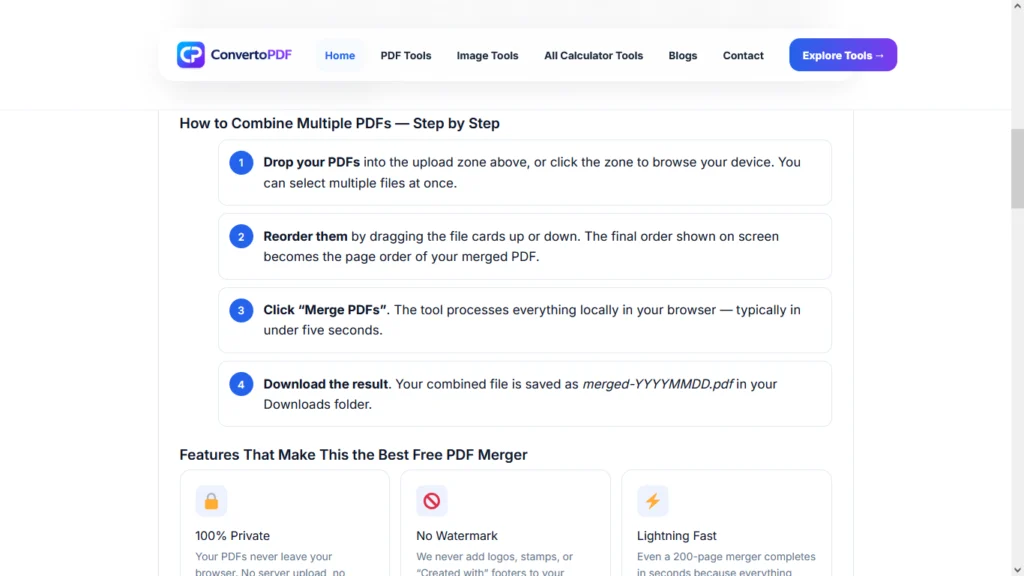
Why Use ConvertoPDF to Merge PDFs?
ConvertoPDF is designed to make PDF management fast, secure, and user-friendly. Here are some of its key advantages:
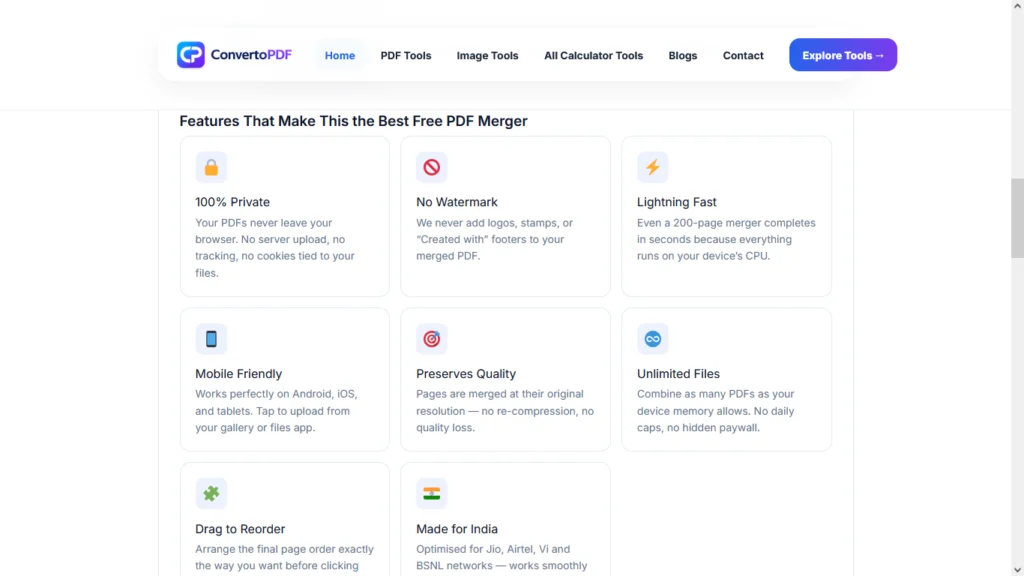
- Merge unlimited PDF files in seconds
- No software installation required
- No registration or login needed
- Works on desktop and mobile browsers
- Maintains original document quality
- Simple drag-and-drop interface
- Fast processing
- Secure file handling
- Clean and beginner-friendly interface
- Completely free to use
Whether you’re merging two documents or dozens of files, ConvertoPDF helps you finish the task quickly without unnecessary complexity.
Quick Summary
If you’re looking for a simple way to combine multiple PDF files into one organized document, an online Merge PDF tool is the fastest solution. It eliminates the hassle of managing separate files, keeps your documents professional, and works directly from your browser without requiring any downloads.
In the next part, we’ll explore how to merge PDFs step by step, the security and privacy features of ConvertoPDF, practical use cases, optimization tips, and common issues users face when combining PDF files.
How to Merge PDF Online Using ConvertoPDF (Step-by-Step Guide)
Merging PDF files with ConvertoPDF is quick and doesn’t require any technical knowledge. Whether you’re using a desktop, laptop, tablet, or smartphone, the process remains simple.
Step 1: Open the Merge PDF Tool
Visit the Merge PDF page on ConvertoPDF using your preferred web browser.
Step 2: Upload Your PDF Files
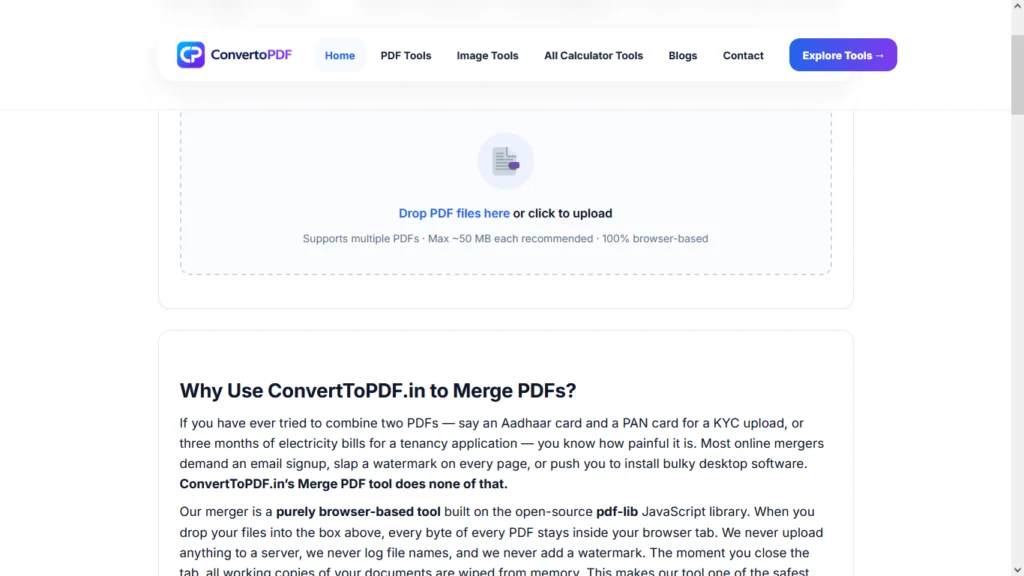
Click the Choose Files button or simply drag and drop your PDF documents into the upload area.
You can upload:
- Assignment files
- Reports
- Invoices
- Contracts
- Certificates
- E-books
- Scanned documents
- Personal records
Step 3: Arrange the Files
Once uploaded, organize the files in the exact order you want them to appear in the final PDF.
This is important because the first uploaded document becomes the first section of your merged PDF.
Step 4: Click “Merge PDF”
After arranging your files, click the Merge PDF button.
The tool will combine all uploaded files into one PDF while preserving:
- Original page quality
- Fonts
- Images
- Formatting
- Tables
- Layout
Step 5: Download Your Combined PDF
Within a few seconds, your merged PDF will be ready for download.
Save it to your device and share, print, or upload it anywhere you need.
Features of ConvertoPDF Merge PDF Tool
Unlike many online PDF utilities that limit file uploads or require subscriptions, ConvertoPDF focuses on providing a fast, secure, and hassle-free experience.
Fast PDF Processing
Your PDF files are processed within seconds, even when multiple documents are uploaded.
This helps save valuable time, especially for office professionals and students working under deadlines.
Original Quality Preserved
Many free PDF tools reduce image quality after merging.
ConvertoPDF preserves:
- Image resolution
- Text clarity
- Fonts
- Tables
- Charts
- Document formatting
- Hyperlinks (where supported)
Your final PDF maintains the same professional appearance as the original files.
No Software Installation
Everything works directly inside your browser.
You don’t need to install:
- Adobe Acrobat
- Desktop software
- Browser extensions
- Additional applications
This saves storage space and allows you to merge PDFs from almost any device.
Works on Every Device
Our Merge PDF tool supports:
- Windows PCs
- MacBooks
- Linux computers
- Android smartphones
- iPhones
- Tablets
As long as you have an internet connection and a browser, you’re ready to merge PDFs.
Simple Drag-and-Drop Interface
The clean interface makes uploading documents effortless.
Simply drag your files into the upload area, rearrange them if needed, and merge them in seconds.
No Registration Required
Unlike many competitors, ConvertoPDF does not require users to create an account before merging PDF files.
This means:
- No signup forms
- No email verification
- No unnecessary waiting
Simply upload, merge, and download.
Secure Processing
Your privacy matters.
Documents uploaded to ConvertoPDF are processed securely, helping protect your personal and professional information.
Whether you’re merging confidential business files or personal records, security remains a priority.
Why Choose ConvertoPDF Over Other Merge PDF Tools?
There are many PDF merger tools available online, but users often choose ConvertoPDF because of its simplicity, speed, and user-focused experience.
Easy for Beginners
Even first-time users can merge PDFs without following complicated instructions.
Clean User Interface
No distracting advertisements, confusing menus, or unnecessary options.
Everything is designed to help users complete the task quickly.
Completely Browser-Based
Since everything happens online, you can access the tool from anywhere without downloading software.
Free to Use
You can merge PDF documents without paying for expensive desktop applications.
Saves Time
Instead of managing several files separately, create one organized document in just a few clicks.
Security & Privacy
One of the biggest concerns users have while uploading PDF files online is privacy.
At ConvertoPDF, document security is treated seriously.
Are My PDF Files Safe?
Yes.
Your uploaded documents are processed securely during the merging process.
Sensitive files such as:
- Financial reports
- Legal agreements
- Medical documents
- Business contracts
- Personal certificates
deserve proper protection, and that’s why security remains an important part of the platform.
Is My Data Shared?
No.
Your uploaded files are not intended for public access, ensuring your documents remain private throughout the process.
Why Secure PDF Processing Matters
Uploading confidential documents to unreliable websites may expose sensitive information.
Choosing a trusted Merge PDF tool helps reduce this risk while giving you confidence that your documents are handled responsibly.
Common Use Cases for Merge PDF
People from different professions merge PDF files every day.
Here are some of the most common scenarios.
Students
Students combine:
- Assignment pages
- Lab reports
- Research papers
- Certificates
- Project files
before submitting them online.
Job Applicants
Candidates often merge:
- Resume
- Cover letter
- Experience certificates
- Portfolio
- Recommendation letters
into one PDF before applying for jobs.
Business Owners
Businesses regularly combine:
- Quotations
- Invoices
- Agreements
- Contracts
- Reports
to keep client communication organized.
Lawyers
Legal professionals frequently merge:
- Evidence documents
- Agreements
- Affidavits
- Court filings
- Supporting paperwork
into one structured file.
Government Applications
Many government portals request applicants to upload one PDF containing multiple supporting documents.
Instead of uploading each document separately, users simply merge everything into one file.
Tips Before Merging PDF Files
Following a few simple practices can help you create a better final document.
Arrange Files Properly
Decide the correct sequence before merging.
This prevents confusion later.
Remove Unnecessary Pages
Delete duplicate or unwanted pages before combining files.
The final PDF becomes cleaner and easier to read.
Use Clearly Named Files
Instead of filenames like:
Document1.pdf
rename them as:
- Resume.pdf
- Certificates.pdf
- Experience.pdf
This makes arranging documents much easier.
Check File Quality
If one uploaded PDF is blurry or scanned poorly, the merged PDF will contain the same issue.
Always verify document quality before uploading.
Review Before Sharing
Open the final merged PDF and confirm:
- Page order
- Readability
- Images
- Tables
- Missing pages
before sending it to others.
Related PDF Tools You May Need
Depending on your workflow, you may also find these tools helpful after merging your documents:
- Split PDF – Extract specific pages from a PDF.
- Compress PDF – Reduce file size for faster sharing.
- PDF to Word – Convert editable PDFs into Word documents.
- Word to PDF – Turn DOC or DOCX files into PDF format.
- Protect PDF – Add a password to secure sensitive documents.
- Unlock PDF – Remove password protection when authorized.
- Rotate PDF – Fix pages that are upside down or sideways.
Using these tools together can make document management much faster and more efficient.
Common Problems While Merging PDF Files (And How to Fix Them)
Although merging PDF files is usually straightforward, users occasionally encounter issues. Understanding these common problems can help you avoid frustration and create a perfectly organized PDF document.
1. Incorrect Page Order
One of the most common mistakes is merging files in the wrong sequence.
Solution
Before clicking the Merge PDF button, carefully arrange the uploaded files in the desired order. If your tool supports drag-and-drop reordering, use it to organize the documents correctly.
2. Large PDF File Size
Combining multiple high-quality PDFs may result in a large output file.
Solution
If your merged document becomes too large for email attachments or website uploads, use the Compress PDF tool after merging to reduce its size without significantly affecting quality.
3. Blurry Pages
Some users believe the Merge PDF tool reduces quality, but in most cases the original uploaded PDF already contains low-resolution pages.
Solution
Always upload high-quality PDF files. A PDF merger combines documents—it cannot improve the quality of poor scans or blurry images.
4. Password-Protected PDFs
Encrypted or password-protected PDF files may not merge unless the correct password is provided.
Solution
If you have permission, unlock the protected document first and then merge it with your other PDF files.
5. Unsupported or Damaged PDF Files
Sometimes downloaded PDFs become corrupted during transfer or download.
Solution
Download the file again or recreate the PDF before attempting to merge it.
Can I Merge PDF Files on Mobile?
Yes.
ConvertoPDF is fully compatible with modern smartphones and tablets.
Whether you’re using Android or iPhone, you can merge PDF files directly from your browser without installing an app.
Mobile Benefits
- Merge PDFs while traveling
- No app installation required
- Touch-friendly interface
- Works in Chrome, Safari, Edge, and other modern browsers
- Download merged files instantly
This makes it convenient for students, professionals, and anyone who needs quick access on the go.
Can I Merge PDF Files on Windows or Mac?
Absolutely.
The Merge PDF tool works on all major desktop operating systems.
Supported platforms include:
- Windows 11
- Windows 10
- Windows 8
- macOS
- Linux
Since the tool is browser-based, you don’t need Adobe Acrobat or any additional software.
Does Merging PDFs Reduce Quality?
No.
A high-quality PDF merger combines documents while preserving the original content.
This includes:
- Text formatting
- Fonts
- Images
- Charts
- Tables
- Graphics
- Hyperlinks (where supported)
- Overall page layout
Your merged document should look nearly identical to the original files.
Is It Safe to Merge PDF Files Online?
Security is one of the biggest concerns when working with online documents.
A trustworthy Merge PDF tool should prioritize user privacy and secure processing.
When choosing an online PDF merger, look for features such as:
- Secure file transfer
- Automatic file cleanup after processing
- No unnecessary account creation
- Reliable browser-based processing
- Privacy-focused document handling
This is especially important for business contracts, financial records, academic documents, and personal certificates.
Best Practices for Organizing PDF Documents
If you regularly work with PDFs, these habits can save you time.
Use Meaningful File Names
Instead of:
- File1.pdf
- Final.pdf
- New.pdf
Use names like:
- Invoice-April-2026.pdf
- Resume-Syed.pdf
- Client-Proposal.pdf
Merge Related Documents Together
Create separate PDFs for different purposes.
For example:
- Resume + Cover Letter
- Contract + Annexures
- Assignment + References
- Invoice + Payment Receipt
This keeps your files organized and professional.
Store Important PDFs in Cloud Storage
After downloading your merged PDF, consider backing it up using your preferred cloud storage service so it’s available across all your devices.
Frequently Asked Questions (FAQs)
1. How can I merge PDF files online for free?
Upload your PDF files, arrange them in the correct order, click Merge PDF, and download the combined document. No software installation is required.
2. Can I combine more than two PDF files?
Yes. You can merge multiple PDF documents into a single organized file.
3. Do I need to create an account?
No. ConvertoPDF allows you to merge PDF files without mandatory registration.
4. Does merging PDFs affect quality?
No. The original formatting, fonts, and layout are preserved.
5. Can I merge scanned PDF documents?
Yes. Scanned PDFs can also be combined into one file.
6. Is the Merge PDF tool free?
Yes. You can merge PDF files online without paying for desktop software.
7. Can I rearrange pages before merging?
Yes. Arrange the uploaded files in your preferred order before merging.
8. Does it work on mobile phones?
Yes. Android and iPhone users can merge PDFs directly from their browsers.
9. Can I merge password-protected PDFs?
Only if you have authorization and can unlock the document first.
10. Will my formatting change?
No. Text, images, tables, and page layouts remain intact.
11. What file types are supported?
The Merge PDF tool is designed for PDF documents. Convert other file formats to PDF before merging if necessary.
12. Can I email the merged PDF?
Yes. After downloading the merged file, you can attach it to emails or upload it wherever required.
13. Is there a file limit?
The supported file size depends on the tool’s current limits, but most everyday documents merge quickly and efficiently.
14. Why should I merge PDFs instead of sending separate files?
A single organized PDF is easier to review, download, print, archive, and share. It also looks more professional.
15. What should I do after merging PDFs?
Depending on your needs, you can:
- Compress the merged PDF for easier sharing.
- Protect it with a password.
- Convert it to Word.
- Split specific pages later.
- Rotate pages if needed.
Conclusion
Managing multiple PDF documents doesn’t have to be complicated. Whether you’re submitting assignments, preparing business reports, organizing contracts, applying for jobs, or storing personal records, combining your files into one well-structured PDF makes everything easier.
With ConvertoPDF Merge PDF, you can merge PDF files online in just a few clicks without downloading software or creating an account. The tool is designed to be fast, secure, and easy to use while preserving the quality and formatting of your original documents.
If you frequently work with PDFs, you may also find our other tools useful. After merging your files, you can Compress PDF to reduce file size, Split PDF to extract pages, Protect PDF to secure sensitive documents, Unlock PDF when authorized, or convert files using PDF to Word and Word to PDF. Together, these tools provide a complete solution for managing PDF documents efficiently.
Start using ConvertoPDF today and simplify the way you organize, share, and manage your PDF files.
Need More PDF & Image Tools?
Explore free online tools to compress PDFs, resize images, convert files, and optimize documents instantly.
Explore Tools →