
Merging images is useful whenever you need to bring two or more separate pictures together into a single image. You may want to place photos side by side, stack screenshots vertically, combine scanned pages, create a simple collage, or put before-and-after images into one file. Instead of opening complicated photo-editing software, you can use an online image merger to merge images quickly from your browser.
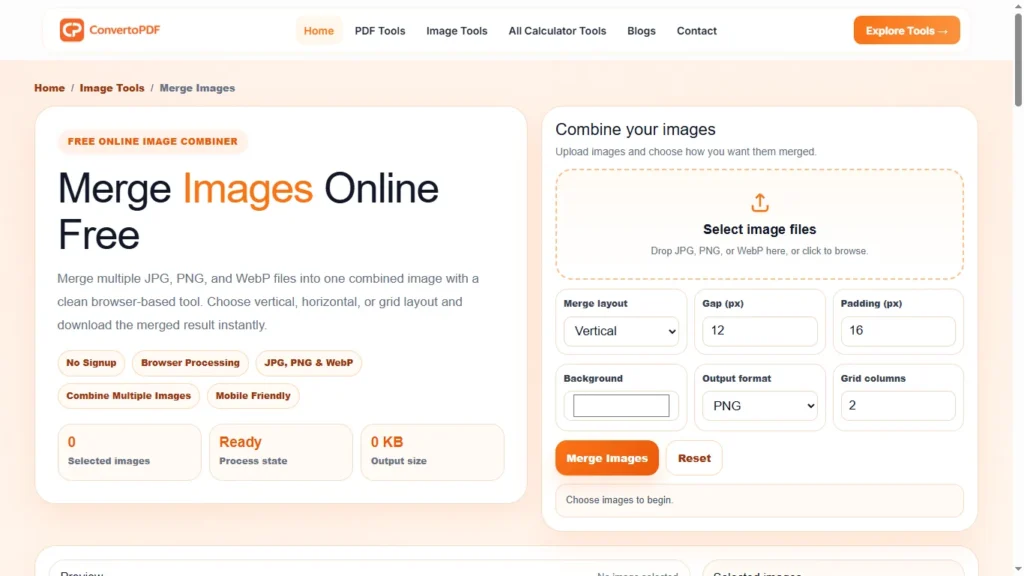
With ConvertOPDF’s Merge Images tool, you can combine multiple images into one organized image without installing desktop software. You can upload your images, arrange them in the order you want, choose a layout, customize spacing and background settings, and download the final result.
This guide explains how to merge images online, how to combine JPG and PNG files, when to use horizontal or vertical merging, how image quality is affected, and what to consider when combining multiple pictures.
What Does It Mean to Merge Images?
To merge images means to combine two or more separate image files into one final image.
For example, suppose you have three screenshots that show different parts of the same process. Instead of sending three separate files, you can merge them vertically into one long image. If you have a before photo and an after photo, you can place them next to each other to create a simple comparison image.
Image merging is different from simply placing images into a folder. The individual pictures become part of one new image canvas.
Depending on the tool and the result you want, images can be combined:
- Horizontally from left to right
- Vertically from top to bottom
- In a grid
- With adjustable spacing
- With a custom background
- With different image sizes
- Into a single JPG, PNG, or WebP file
The best layout depends on how you plan to use the final image.
Merge Images Online With ConvertOPDF
If you need a quick way to combine multiple pictures, use the Merge Images tool from ConvertOPDF.
The tool is designed for common image-merging tasks without requiring complicated editing software. You can upload multiple images, arrange them, select the desired layout, and create one final image.
Why use an online image merger?
An online image merger can be useful when:
- You only need to combine a few images
- You do not have photo-editing software installed
- You want to combine screenshots quickly
- You need to create a before-and-after image
- You want to stack scanned pages
- You need to combine several JPG or PNG files
- You want a simple collage without learning complex editing software
The goal is simple: upload your images, arrange them, merge them, and download the result.
How to Merge Images Online
Merging images does not have to be complicated. The general process takes only a few steps.
Step 1: Select Your Images
Start by selecting the images you want to combine.
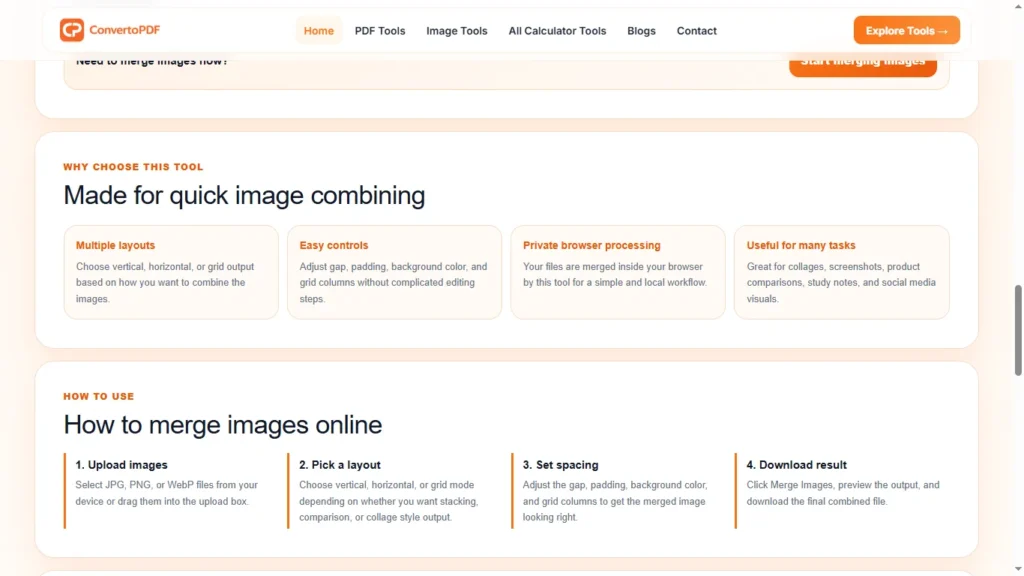
You can usually select multiple files at once from your computer or drag and drop them into the tool. Depending on the browser and tool implementation, supported formats may include JPG, JPEG, PNG, WebP, and other common image formats.
Before uploading, make sure you have selected the correct images and that they are in a useful order.
Step 2: Arrange the Images
After uploading your files, arrange them in the order you want.
The order matters because it determines which image appears first, second, third, and so on in the final result.
For example:
- Screenshot 1
- Screenshot 2
- Screenshot 3
- Screenshot 4
When merged vertically, Screenshot 1 will appear at the top and Screenshot 4 at the bottom.
If your tool supports drag-and-drop reordering, you can change the order before creating the final image.
Step 3: Choose a Layout
The most common options are horizontal, vertical, and grid layouts.
Choose the layout according to the purpose of your image.
Horizontal: Best for side-by-side comparisons.
Vertical: Best for screenshots, scanned pages, instructions, and long sequences.
Grid: Useful when you want several images displayed together in a compact arrangement.
Step 4: Adjust Spacing and Background
If your images have different dimensions, a small amount of spacing can make the final result look cleaner.
You may also want to choose a background color around or between the images.
For example, a white background works well for documents and screenshots, while a transparent background can be useful when the output format supports transparency.
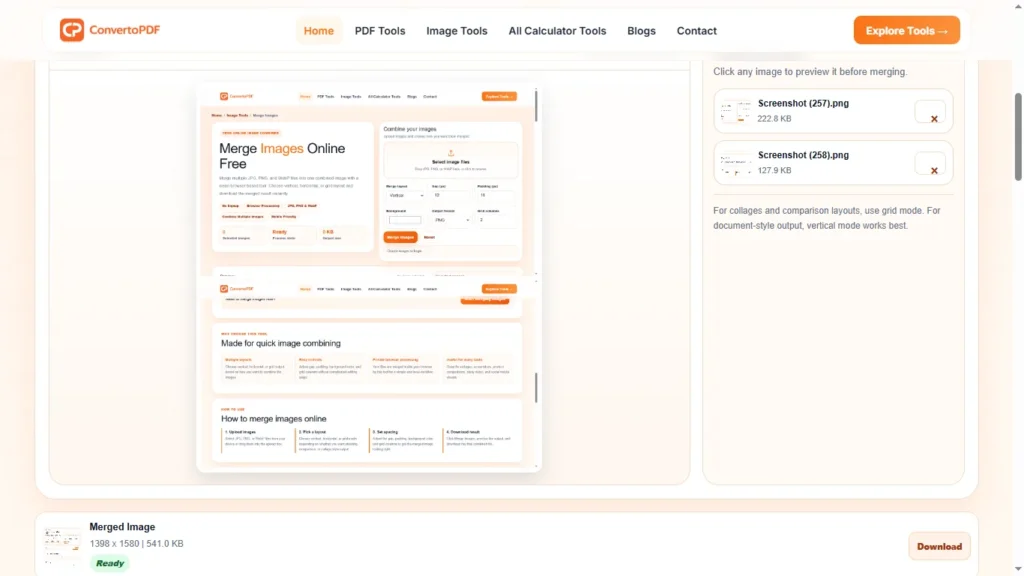
Step 5: Preview the Result
Always preview the merged image before downloading it.
Check:
- Image order
- Orientation
- Spacing
- Background
- Cropping
- Image proportions
- Overall dimensions
A preview helps you identify problems before creating the final file.
Step 6: Download the Merged Image
Once everything looks correct, merge the images and download the final file.
You now have multiple separate pictures combined into one image.
How to Merge Two Images Into One
One of the most common image-merging tasks is combining exactly two pictures.
For example, you may have:
- Before and after photos
- Two screenshots
- Two product images
- Two scanned pages
- Two diagrams
- Two versions of a design
If you want a comparison, the horizontal layout is usually the most intuitive.
For example:
Before | After
This allows viewers to compare both images without opening separate files.
If the two images are tall screenshots, a vertical layout may work better:
Screenshot 1
↓
Screenshot 2
The important thing is to select the layout that matches the dimensions and purpose of the images.
How to Merge Multiple Images Into One
You are not limited to two images.
You can combine several pictures into a single image when you need to present a sequence or collection.
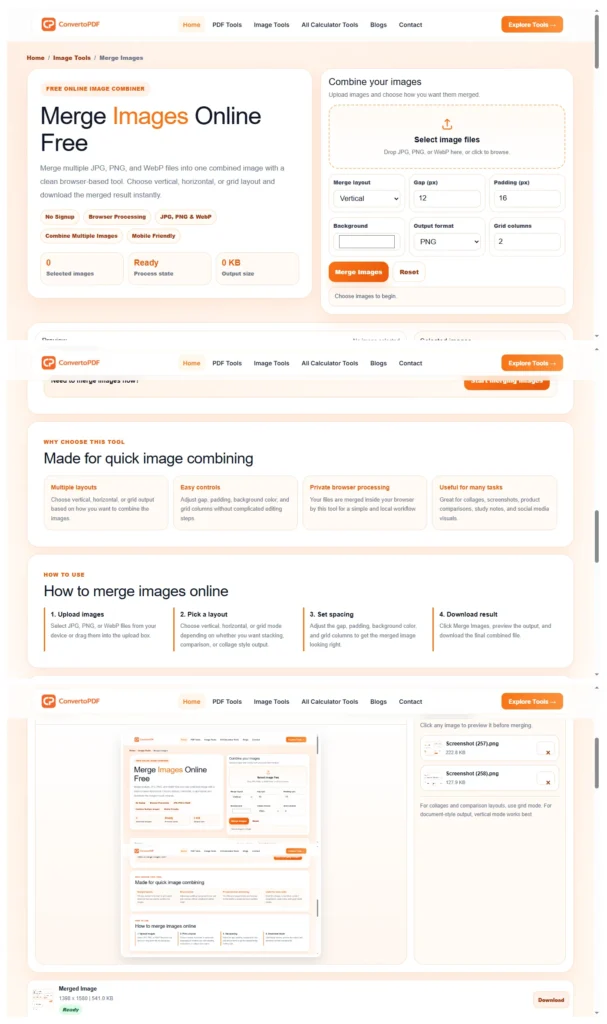
For example, imagine that you have five screenshots showing the steps of a process. Instead of sending five separate files, you can merge them into one long image.
A useful order might be:
- Starting screen
- First action
- Second action
- Result
- Final confirmation
This approach is particularly useful for tutorials, guides, documentation, and demonstrations.
When merging many images, pay attention to the final dimensions. Combining a large number of high-resolution images vertically can produce a very tall output file.
Merge Images Side by Side
Horizontal image merging places images next to one another.
For example:
Image 1 | Image 2 | Image 3
This layout is ideal for:
- Before-and-after comparisons
- Product comparisons
- Design variations
- Two-photo comparisons
- Charts and diagrams
- Visual presentations
- Social media graphics
If the images have very different heights, the final composition may look uneven. In that case, resizing or fitting the images to a common height can produce a cleaner result.
Merge Images Vertically
Vertical merging stacks images from top to bottom.
For example:
Image 1
Image 2
Image 3
This is especially useful for screenshots and documents.
A website tutorial might contain several screenshots that need to be viewed in sequence. Instead of making users open each screenshot separately, you can combine them into one continuous image.
Vertical merging is also useful for:
- Chat screenshots
- Long instructions
- Scanned pages
- Receipts
- Forms
- Mobile screenshots
- Step-by-step tutorials
If you are combining images that represent a sequence, vertical merging usually provides a natural reading direction.
Merge Images Into a Grid
A grid layout is useful when you have several images and want to display them together without creating an extremely wide or tall image.
For example, six photos could be arranged as:
Image 1 | Image 2 | Image 3
Image 4 | Image 5 | Image 6
Grid layouts are commonly useful for:
- Photo collections
- Product thumbnails
- Contact sheets
- Portfolio previews
- Image comparisons
- Simple collages
- Visual summaries
A grid can make a large collection easier to view at once.
Merge JPG Images
JPG is one of the most common image formats, especially for photographs.
If you have several JPG files, you can combine them into one image instead of keeping them as separate files.
For example, you could merge:
photo-1.jpg
photo-2.jpg
photo-3.jpg
into a single image such as:
merged-images.jpg
When working with JPG files, remember that JPG uses lossy compression. Repeatedly saving an image as JPG can reduce quality, particularly when high compression settings are used.
For a final photograph-based output, however, JPG can be an efficient choice because it usually produces a much smaller file than an uncompressed or lossless alternative.
Merge PNG Images
PNG is commonly used for screenshots, graphics, icons, diagrams, and images that need transparency.
You can merge multiple PNG files into one composition while maintaining the visual characteristics of the original images.
PNG is especially useful when:
- Transparency matters
- Images contain text or sharp graphics
- You are working with interface screenshots
- You want lossless output
- You are combining diagrams or illustrations
If the final image does not need transparency and file size is important, you may prefer JPG or WebP depending on your intended use.
Merge WebP Images
WebP is a modern image format designed to provide efficient compression while supporting features such as transparency.
If you have multiple WebP images, merging them can be useful when you want to consolidate several web graphics into one file.
For website use, consider whether combining images actually improves performance. Sometimes separate images are better for responsive layouts and accessibility. In other cases, a single image is more convenient for sharing or downloading.
The right choice depends on the purpose of the final file.
How to Merge Images Without Losing Quality
Many people search for a way to merge images without losing quality.
The merging operation itself does not necessarily require visible quality loss. Problems usually happen when the images are resized, recompressed, or exported into a lossy format.
To maintain better quality:
Use the original images
Start with the highest-quality versions available.
Avoid repeatedly converting already compressed files.
Avoid unnecessary resizing
If you do not need to change the dimensions, preserve the original image dimensions where practical.
Choose an appropriate output format
Use PNG when lossless quality or transparency is important.
Use JPG when you need a smaller photographic image.
Use WebP when efficient web delivery is a priority and your workflow supports it.
Use an appropriate quality setting
If the tool provides an output-quality control, do not automatically select the lowest possible setting.
A slightly larger file may provide a significantly better visual result.
When Should You Merge Images?
There are many practical situations where combining images into one file makes sense.
1. Before-and-After Comparisons
Place the original and edited versions next to each other.
2. Screenshots
Combine several screenshots into one image for a tutorial or support document.
3. Scanned Documents
If individual pages have been scanned as separate image files, you can combine them into a single visual document.
4. Product Comparisons
Show two or more products in one image.
5. Social Media Content
Create a simple multi-image composition without opening a full photo editor.
6. Tutorials
Combine sequential screenshots into one visual guide.
7. Presentations
Create a single visual containing related charts, screenshots, or diagrams.
8. Design Reviews
Place multiple design variations next to each other so they can be compared quickly.
9. Portfolio Images
Combine several examples into a single preview image.
10. Personal Photos
Create a simple collage from several photographs.
Merge Images vs Create a Collage
These terms are sometimes used interchangeably, but there is a useful distinction.
Merging images generally means combining images into one output canvas according to a selected arrangement.
Creating a collage often involves more creative composition, such as decorative layouts, frames, text, effects, stickers, and different shapes.
If your goal is simply to combine multiple files into one clean image, an image merger is usually enough.
If you need advanced artistic editing, you may need a dedicated photo editor.
What Is the Best Layout for Merging Images?
There is no single best layout.
The correct layout depends on your content.
| Purpose | Recommended Layout |
|---|---|
| Before and after | Horizontal |
| Two product photos | Horizontal |
| Screenshots | Vertical |
| Scanned pages | Vertical |
| Multiple photos | Grid |
| Product catalog preview | Grid |
| Step-by-step tutorial | Vertical |
| Visual comparison | Horizontal |
| Photo collection | Grid |
The key is to match the layout to how people will view the final image.
Common Mistakes When Merging Images
Using images with very different dimensions
Large differences in width and height can make the final composition look uneven.
Ignoring image order
If the images represent a sequence, the wrong order can make the final image confusing.
Using excessive spacing
Large gaps between images waste canvas space.
Choosing the wrong output format
Saving every image as JPG is not always appropriate, especially when transparency is required.
Exporting unnecessarily large images
A very large canvas can increase file size without providing meaningful visual benefits.
Compressing too aggressively
Very low quality settings can introduce visible artifacts.
Forgetting mobile viewing
A very wide merged image can be difficult to view on a phone.
How to Choose Between JPG, PNG, and WebP
The output format should match the type of content.
JPG
Best for:
- Photographs
- Real-world images
- Smaller file sizes
- General sharing
PNG
Best for:
- Screenshots
- Logos
- Graphics
- Transparency
- Lossless output
WebP
Best for:
- Modern web content
- Smaller web images
- Images where efficient compression is important
- Situations where transparency may be useful
There is no universally superior format. Your choice should depend on quality, transparency, compatibility, and file-size requirements.
Is It Safe to Merge Images Online?
Privacy is an important consideration whenever you use an online file-processing service.
Before using any online image tool, check how it handles uploaded files and whether processing happens locally in the browser or on a remote server.
For images containing private information, IDs, documents, screenshots, or other sensitive material, browser-based processing can be preferable because the files can remain on your device.
ConvertOPDF’s tool can be designed around local browser processing where supported, giving users a convenient way to combine images without unnecessarily sending them to a remote server.
Why Use ConvertOPDF to Merge Images?
ConvertOPDF is designed to make common file and image tasks straightforward.
The Merge Images tool focuses on the actual task instead of requiring users to learn a complicated image-editing application.
With the tool, you can work with multiple images, arrange them according to your needs, select an appropriate layout, customize the result, and download the merged image.
It is particularly useful when you need to:
- Merge images quickly
- Combine multiple pictures
- Join screenshots
- Create before-and-after comparisons
- Stack images vertically
- Place images side by side
- Create simple grid compositions
- Work from a desktop or mobile browser
Tips for Better Merged Images
A few simple decisions can make the final image look much more professional.
Keep a consistent visual order
If you are presenting a process, arrange images chronologically.
Use similar dimensions when possible
Images with similar proportions usually create cleaner compositions.
Use spacing deliberately
Small, consistent spacing can separate images without distracting from them.
Avoid unnecessary backgrounds
If the images already have a clean edge, a simple background is often enough.
Check the final dimensions
Make sure the final image is practical for its intended use.
Preview before downloading
Always inspect the complete result before sharing it.
Frequently Asked Questions
What does merge images mean?
Merge images means combining two or more separate image files into a single image. The images can be arranged horizontally, vertically, or in a grid depending on the desired result.
Can I merge two images into one?
Yes. Two images can be combined into a single image. You can place them side by side or stack one above the other.
Can I merge multiple images at once?
Yes. Multiple images can be combined into one output image. The exact number may depend on the browser, available memory, and the tool’s implementation.
Can I merge JPG and PNG images together?
Yes, image-merging tools can support mixed formats such as JPG, JPEG, and PNG. The final output format determines how the combined image is saved.
Can I merge images vertically?
Yes. Vertical merging places one image below another and is particularly useful for screenshots, scanned pages, tutorials, and sequential images.
Can I merge images horizontally?
Yes. Horizontal merging places images next to each other. It is especially useful for comparisons and before-and-after images.
Can I merge images into a grid?
Yes. A grid layout can arrange several images into rows and columns, making it useful for photo collections and simple collages.
Will merging images reduce quality?
Merging itself does not automatically mean that image quality will decrease. Quality can be affected by resizing, compression, or exporting to a lossy format such as JPG.
Can I merge images without installing software?
Yes. An online image merger can allow you to combine images directly from a web browser without installing desktop image-editing software.
Is it better to merge images horizontally or vertically?
It depends on the purpose. Horizontal merging is usually better for comparisons, while vertical merging works well for screenshots, documents, and sequential content.
What image format should I use after merging?
JPG is suitable for photographs and smaller file sizes. PNG is useful for graphics, screenshots, and transparency. WebP can be useful when efficient web delivery is important.
Can I merge screenshots into one image?
Yes. Combining screenshots vertically is a common use case because it allows several steps or screens to be viewed as one continuous image.
Final Thoughts
Learning how to merge images can save time whenever several separate pictures need to be presented as one file. Whether you want to combine two photos, join multiple screenshots, create a before-and-after comparison, stack scanned pages, or arrange several pictures in a grid, the right image-merging workflow can make the process much easier.
For simple tasks, you do not necessarily need complicated photo-editing software. A browser-based image merger can handle common layouts such as horizontal, vertical, and grid arrangements while letting you organize your files before creating the final image.
The most important step is choosing the right layout and output format for your purpose. Horizontal layouts work well for comparisons, vertical layouts are useful for sequences and screenshots, and grid layouts are convenient for collections.
If you need to combine multiple images into one, try the ConvertOPDF Merge Images tool and create your merged image directly from your browser.
Need More PDF & Image Tools?
Explore free online tools to compress PDFs, resize images, convert files, and optimize documents instantly.
Explore Tools →